Convert PDF To Vector: Easy Step-by-Step Guide
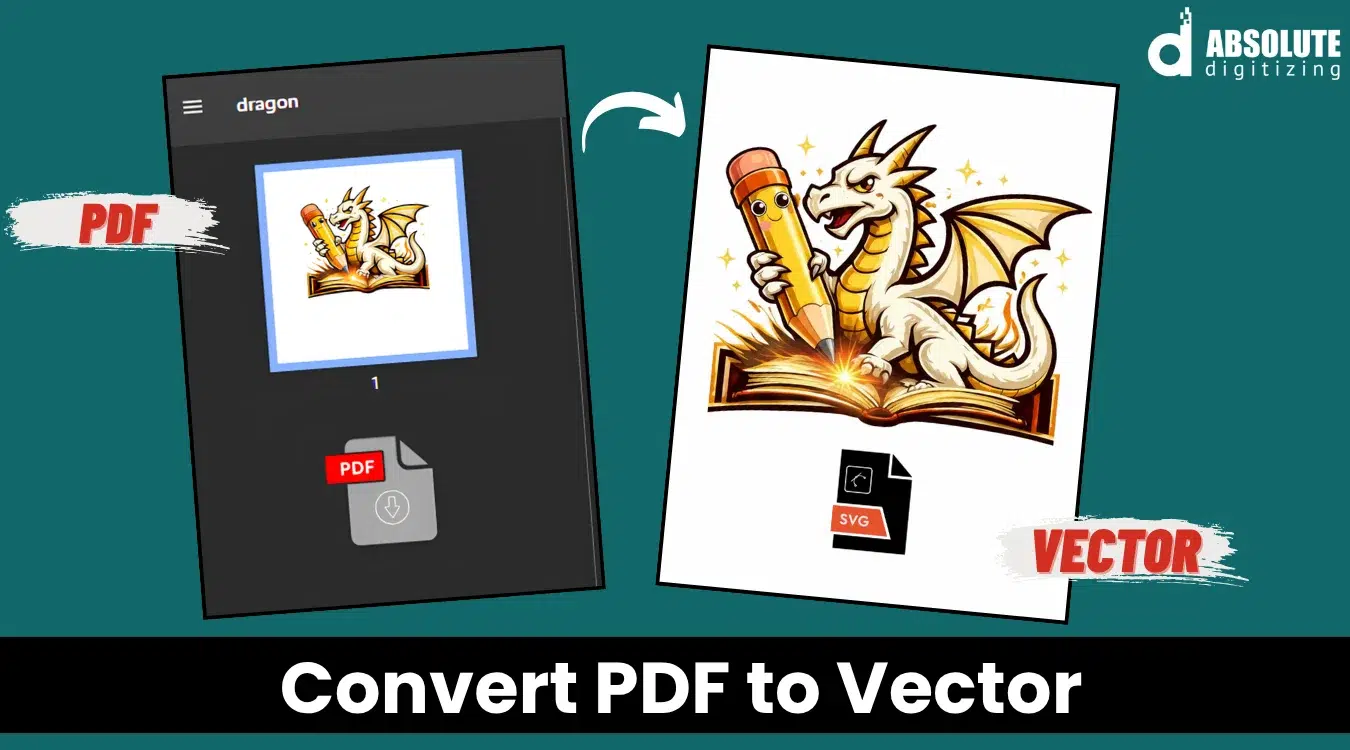
Convert PDF To Vector
Ever opened a PDF logo and tried to scale it… only to see blurry edges? That’s frustrating—and honestly, very common.
Here’s the thing: not all PDFs are created equal. Some are already vector-based, while others are just images hiding inside a PDF file.
If you want clean, scalable designs, learning how to convert PDF to vector is a must—especially for printing, embroidery, or design work.
Let’s break it down in the simplest way possible.
What Does “Convert PDF To Vector” Mean?
When you convert a PDF to vector, you’re turning the design into editable paths instead of pixels.
Why This Matters:
-
You can scale designs without losing quality
-
You can edit shapes, colors, and text
-
You get clean, professional output
Think of vector files like flexible blueprints—you can reshape them anytime.
How to Check If Your PDF Is Already Vector
Before converting, check this first—you might save time.
Quick Test:
-
Zoom in closely
-
If edges stay sharp → it’s vector
-
If edges look pixelated → it’s raster
If it’s already vector, you just need to extract it—not convert it.
Methods to Convert PDF To Vector
There are a few simple ways to do it.
1. Open and Save as Vector Format
If your PDF is vector-based:
Steps:
-
Open the PDF in design software
-
Select the artwork
-
Save or export as:
-
SVG
-
EPS
-
AI
Done. No conversion needed.
2. Trace the PDF (For Raster Files)
If your PDF contains an image, you’ll need to trace it.
Steps:
-
Import the PDF
-
Use auto-trace or manual tracing tools
-
Adjust paths and curves
-
Clean up edges
-
Save as vector format
This is the most common method.
3. Manual Redrawing (Best Quality)
For complex or low-quality PDFs:
-
Recreate the design from scratch
-
Use shapes, lines, and paths
-
Match colors and proportions
It takes longer—but gives the cleanest result.
Best Output Formats for Vector Files
After you convert PDF to vector, choose the right format.
Common Formats:
-
SVG – Great for web and scaling
-
EPS – Ideal for printing
-
AI – Fully editable design file
-
PDF (vector) – For sharing and printing
Choose based on your final use.
Common Problems and Fixes
Let’s talk about real issues you might face.
Problem 1: Rough Edges After Conversion
Fix: Smooth paths and reduce anchor points
Problem 2: Missing Details
Fix: Adjust trace settings or redraw manually
Problem 3: Too Many Nodes
Fix: Simplify the design for cleaner output
Pro Tips for Better Vector Conversion
Want cleaner results? These tips help a lot.
-
Use high-quality PDFs
-
Avoid low-resolution images
-
Keep designs simple
-
Zoom in and refine edges
-
Always double-check shapes
Think of it like cleaning a sketch—you refine it until it looks perfect.
When Should You Convert PDF To Vector?
You’ll need vector files when:
-
Printing large designs
-
Creating embroidery files
-
Designing logos
-
Editing artwork professionally
Vector is the industry standard for quality work.
How Absolute Digitizing Can Help
If converting files feels confusing or time-consuming, Absolute Digitizing can handle it for you.
You can:
-
Get clean, accurate vector files
-
Fix low-quality PDFs
-
Save time and avoid errors
It’s especially useful when you need professional results quickly.
Conclusion
Learning how to convert PDF to vector can seriously upgrade your design workflow.
Whether you’re printing, designing, or digitizing, vector files give you control, clarity, and flexibility.
Start by checking your PDF type, choose the right method, and always refine your final output.
And remember—good artwork always starts with clean foundations.
FAQs
1. Can all PDFs be converted to vector?
Not directly. If a PDF contains raster images, it must be traced or redrawn to become vector.
2. What is the best format after converting to vector?
SVG, EPS, and AI are the most commonly used formats depending on your needs.
3. Will converting PDF to vector improve quality?
It won’t fix a low-quality image automatically, but it allows you to recreate it in high quality.
4. Is auto-tracing accurate?
It works well for simple designs, but complex artwork may need manual adjustments.
5. Why is my vector file too complex?
This happens بسبب too many anchor points. Simplifying paths can fix it.

 English
 Arabic
 French
 Spanish
 Portuguese
 Deutsch
 Turkish
 Dutch
Dutch
 Italiano
 Russian
 Romaian
 Greek
Greek